Free GPA Calculator
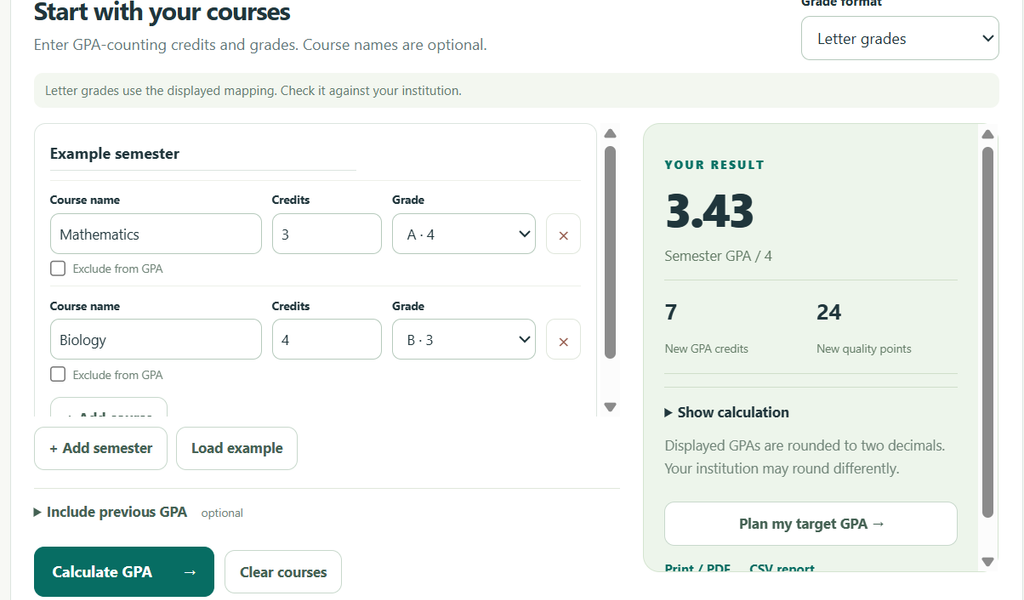
Use this free GPA calculator to calculate semester and cumulative GPA, plan your target, and check the average needed in remaining courses.
Inputs stay in this open page. Download a course plan to keep your entries. For more space, select “Open full tool”.
How to use the GPA calculator
- Choose your grade format: letter grades, direct points or percentages.
- Check the grading scale against your institution’s policy.
- Enter each course’s GPA credits and grade. Course names are optional.
- Select Calculate GPA to see your result and calculation.
Semester and cumulative GPA
Start with one semester or add more terms. To include earlier work, open “Include previous GPA” and enter the previous GPA and its matching GPA credits. Avoid counting those courses twice.
Target GPA
Enter your current cumulative GPA, current GPA credits, desired GPA and future credits. The calculator shows the average needed across those future credits.
Remaining courses
Enter known course results as grade points, then add remaining credits and your target semester GPA. The result is the required credit-weighted average across those remaining credits.
GPA calculator formula and example
Each course contributes quality points equal to its GPA credits multiplied by its grade points.
GPA = total quality points ÷ total included GPA credits
Example: a 3-credit course at 4.0 points contributes 12 quality points. A 4-credit course at 3.0 points contributes another 12.
Total GPA = 24 ÷ 7 = 3.428571…, displayed as 3.43.
Courses with more credits contribute more to the average. A rounded previous GPA can make cumulative calculations approximate.
Choose your GPA calculator grading scale
The 4.0 and 4.3 templates are editable examples. Open “View / change scale” to review grade points and percentage thresholds.
Percentage-to-GPA conversion varies by institution. This GPA calculator applies the displayed conversion table to each course before weighting it by credits.
For a 5- or 10-point system, set the maximum GPA and use Direct points. If entering letters or percentages, edit the mapping table as well. Changing the maximum does not automatically rescale your grades.
Mark “Exclude from GPA” only when your institution excludes both the grade and credits. Repeated-course replacement and other institutional adjustments are not applied automatically.
This is a planning calculator, not an official international transcript evaluation.
GPA calculator frequently asked questions
Is this GPA calculator free?
Yes. All three modes and report options are free, with no account required.
Can I calculate several semesters together?
Yes. Use “Add semester”. Courses are combined using their GPA credits rather than averaging semester GPAs equally.
Can I save my course entries?
Open “Save or load a course plan” and download your plan. It includes course inputs, previous GPA and applied grading settings. Target and remaining-course scenarios are not included.
Can I download or print a report?
After calculating course GPA, use CSV report or Print / PDF. Your browser’s print dialog can save the report as a PDF.
What if my target is too high?
If the required average exceeds the selected scale maximum, the calculator flags the target as unreachable with the entered credit count.
Are results official?
No. Check your institution’s GPA credits, grading scale, repeat-course rules and rounding policy before using the result for academic decisions.